
Translating images with AI
AI image translation rewrites the text in a product image (infographics, size charts, packaging shots) into another language and keeps the rest of the design the same. Nothing goes live until you approve it.
Open it from AI Translate in the GeoGallery menu.
How to translate images
Section titled “How to translate images”1. Choose a product
Section titled “1. Choose a product”Click Choose product and pick one product. You translate one product at a time.
2. Pick images and languages
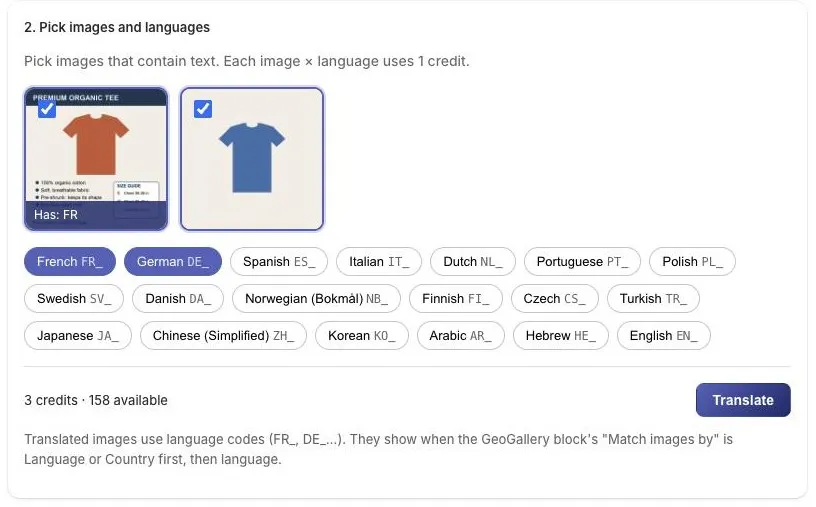
Section titled “2. Pick images and languages”- Tick the images that contain text. Only default (un-prefixed) images can be translated. Images that already have translations show a Has: label with their codes.
- Click the languages you want.
- Check the cost under the grid: each image × language uses 1 credit. Pairs that already have a translation are skipped and not counted.
- Click Translate.
You can start up to 20 translations at a time.
Languages available
Section titled “Languages available”French, German, Spanish, Italian, Dutch, Portuguese, Polish, Swedish, Danish, Norwegian (Bokmål), Finnish, Czech, Turkish, Japanese, Chinese (Simplified), Korean, Arabic, Hebrew and English.
3. Wait for the results
Section titled “3. Wait for the results”Each image takes about 30 seconds. You can leave the page: translations keep running, and the GeoGallery Home page shows how many images are waiting for review, with a link to each product.
4. Review
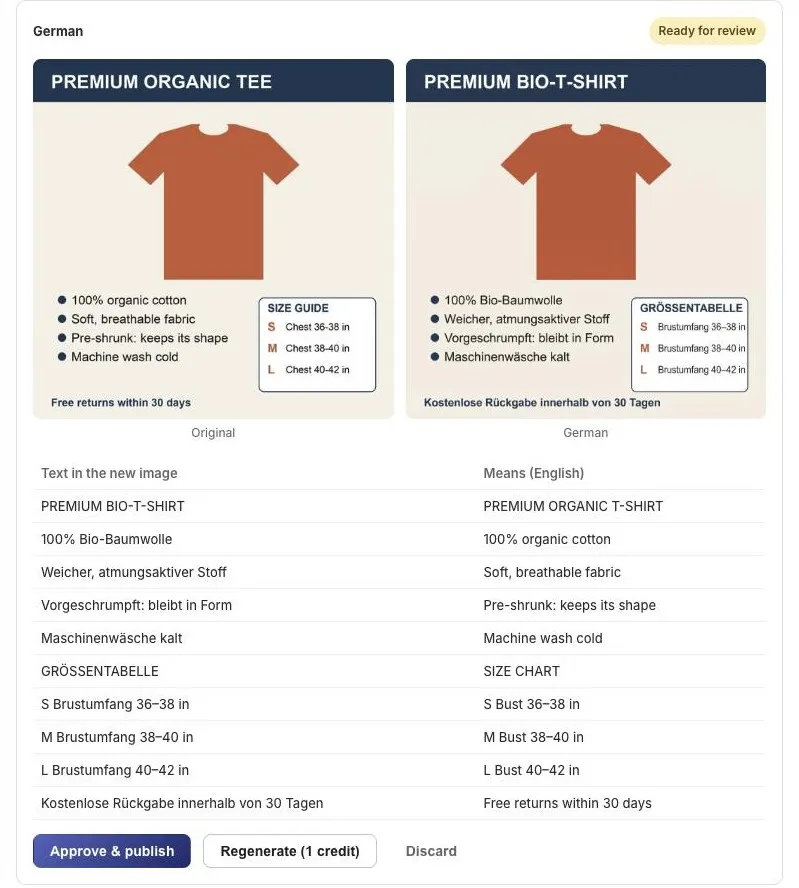
Section titled “4. Review”Each translation shows the original next to the new version, plus a table of the text in the new image with its meaning in English, so you can check it even if you don’t speak the language. Click the new image to open it full size.
For each one, choose:
- Approve & publish: adds the image to the product, named to pair with its source (for example
FR_shirt.jpgforshirt.jpg) and with alt text such as “French version of product image”. It starts showing on your storefront straight away. - Regenerate (1 credit): discards this version and makes a new one.
- Discard: throws this version away.
Show the translations on your store
Section titled “Show the translations on your store”AI translations use language codes (FR_, DE_…). They show when the GeoGallery block’s Match images by is set to Language or Country first, then language. See Country vs language.
Results you might see
Section titled “Results you might see”| Status | What it means | Credit used? |
|---|---|---|
| Ready for review | Done, waiting for you | Yes |
| No text found | The image has no text, so there was nothing to translate | No |
| Failed: Google declined to edit this image | The AI’s safety filters may have blocked it | No |
| Failed: Translation failed / interrupted | Something went wrong. Click Try again | No |
| Failed: No AI credits left | Your credits ran out before this one finished | No |
When AI translation is busy
Section titled “When AI translation is busy”AI translation has a shared daily capacity across all GeoGallery stores. If it’s used up you’ll see:
AI translation is busy right now, please try again tomorrow.
Translations you’d already queued aren’t lost: they run automatically once capacity resets (at midnight UTC). You can’t start new ones until then.
Good to know
Section titled “Good to know”- Image types: JPEG, PNG and WebP product images up to 15 MB.
- Size: the new image is made at 2K resolution with the aspect ratio closest to the original.
- Watermark: images made by Google’s AI carry Google’s invisible SynthID watermark.
- Your images and Google: the images you choose are sent to Google’s Gemini AI to make the translation. GeoGallery uses the paid Gemini API, and Google doesn’t use the images to train its models. See the Privacy policy.
- Prefer your own translations? Upload them with a code as described in Naming your images. GeoGallery works the same either way.
Next: how AI credits work.