
Theme setup
GeoGallery runs as an app block on your theme’s product page template. It doesn’t add any external scripts or call any servers from your storefront: it runs inside your theme’s own page rendering.
Add the block (one click)
Section titled “Add the block (one click)”- Open GeoGallery and go to Home.
- Click Add block to theme. Your live theme’s editor opens on the product template with the GeoGallery block added to the main product section.
- Choose Match images by (see below) and click Save.
Add the block by hand
Section titled “Add the block by hand”If you’d rather do it yourself, or you’re setting up a theme that isn’t live yet:
- In Shopify, go to Online Store > Themes and click Customize on the theme.
- Switch to a Product page template.
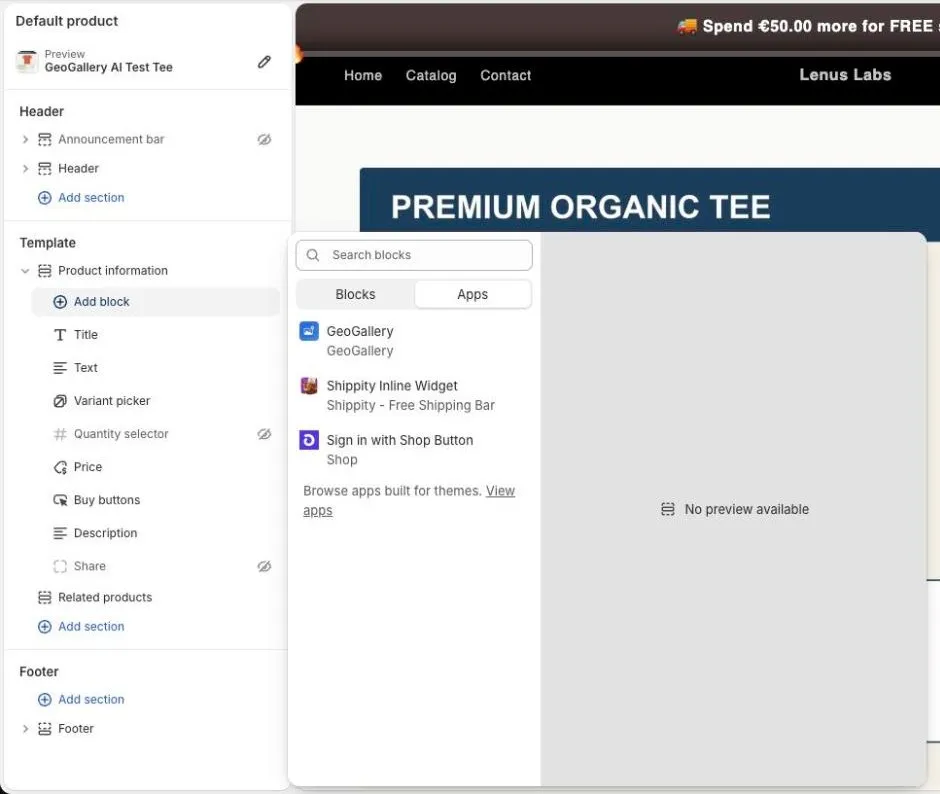
- In the main product section, click Add block, open the Apps tab and choose GeoGallery.
- Choose Match images by and click Save.
The block can only be added to product templates. If you use more than one product template, add it to each template that should localize images. The block doesn’t show anything itself, so its position in the section doesn’t matter.
Block setting: Match images by
Section titled “Block setting: Match images by”| Option | Uses | Example |
|---|---|---|
| Language (FR_ for French) | The storefront language the customer is browsing in | FR_ shows on the French storefront |
| Country (US_ for United States) | The customer’s country from Shopify Markets | US_ shows to customers in the United States |
| Country first, then language | The country, if the product has an image for it; otherwise the language | GB_ for UK customers, else EN_ |
Language is the default. See Country vs language for help choosing.
Supported themes
Section titled “Supported themes”GeoGallery works with the product gallery of any Online Store 2.0 theme. Before the gallery starts, it takes out the images a visitor shouldn’t see, so sliders, thumbnails, zoom views and slider dots only hold the right images. A localized image takes the place of its default image, so it keeps the same position in the gallery and stays linked to the same variant.
We test it on desktop and mobile against each theme’s demo store: the gallery order, the slider arrows and swipes, thumbnails and the zoom view. These 188 themes pass every check:
Agile, Alchemy, Align, Allure, Ascension, Ascent, Atelier, Athens, Athora, Atlantic, Atlas, Attitude, Avante, Azimuth, Barcelona, Baseline, Be Yours, Beyond, Blockshop, Blum, Boost, Borders, Boutique, Broadcast, California, Canopy, Capital, Carbon, Cascade, Cello, Colorblock, Concept, Cornerstone, Crave, Dawn, Desert, Digital, District, Drop, Dwell, Eclipse, Edge, Editions, Electro, Elixira, Ella, Emerge, Empire, Energy, Enterprise, Exhibit, Expanse, Expression, Fabric, Fashionopolism, Flaunt, Flawless, Flux, Focal, Foodie, Force, Forge, Futurer, Gain, Galleria, Haven, Highlight, Honey, Horizon, Hyper, Icon, Igloo, Ignite, Impact, Impression, Impulse, July, Keystone, Kidu, Kingdom, Koto, Krank, Local, Lollipop, Lyra, Madrid, Maker, Marble, Masonry, Maximize, Metropolitan, Minimog, Mix, Modular, Mojave, Monk, Mono, Motion, Motto, Mr. Parker, Multi, Next, Nimbus, Noire, Nordic, Normcore, North, Origin, Palo Alto, Parallax, Paris, Pebble, Pesto, Piano, Pinnacle, Pipeline, Poco, Prestige, Primavera, Publisher, Purevea, Pursuit, Radian, Reformation, Refresh, Release, Responsive, Retina, Retro, Ride, Rise, Ritual, Sahara, San Francisco, Satoshi, Savor, Sense, Seventh, Shella, Shine, Showcase, Showtime, Sitar, Sleek, Soul, Space, Spark, Split, Starlite, Startup, Stiletto, Stockholm, Stockmart, Story, Streamline, Strong, Studio, Stylescape, Sunrise, Swipe, Swiss, Symmetry, Taiga, Testament, Tinker, Tokyo, Toyo, Ultra, Unity, Veena, Veloza, Vessel, Vetro, Victory, Viola, Vision, Vivid, Volume, Warehouse, Whisk, Wokiee, Wonder, Woodstock, Xclusive, Xtra, Yuva, Zenith, Zest.
If your theme isn’t listed, it will usually still work. If your theme doesn’t work, contact us directly at support@lenuslabs.com with your theme name and a product link, and we’ll integrate it for you.
Theme notes
Section titled “Theme notes”- Colour swatches: some themes build their variant colour swatches from product images. A swatch may still show the default image; the gallery itself is correct.
- Opening image: some themes open the gallery on the selected variant’s image rather than the first image. GeoGallery keeps that behaviour.
After you change themes
Section titled “After you change themes”The block belongs to a theme. If you publish a different theme, add the GeoGallery block to that theme’s product template too.