
Quick start
This takes about five minutes. You’ll need admin access to your Shopify store.
Before you start
Section titled “Before you start”GeoGallery can only show images to markets and languages your store already offers. Set up your markets and publish your languages in Shopify under Settings > Markets first. If a customer can’t reach the French version of your store, GeoGallery can’t show them French images.
1. Install the app
Section titled “1. Install the app”- Open GeoGallery on the Shopify App Store.
- Click Install and approve the permissions. GeoGallery asks for one permission: to read and write products. It uses it to check your product images and to add the images you approve from AI translation.
2. Choose a plan
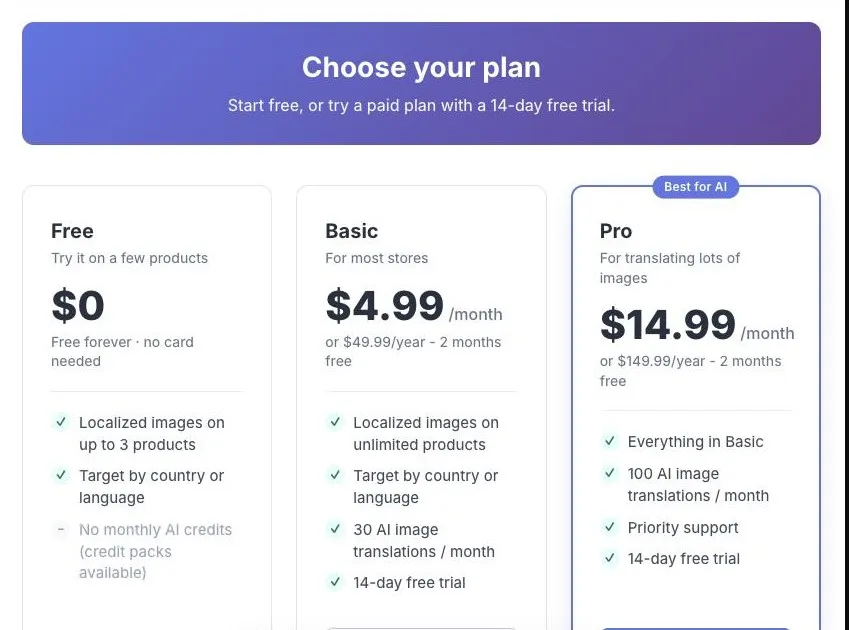
Section titled “2. Choose a plan”The first time you open GeoGallery you land on the Plans page.
- Free works on up to 3 products, with no card needed.
- Basic and Pro work on every product and include monthly AI translation credits. Both start with a 14-day free trial.
Pick one and approve the charge in Shopify if it’s a paid plan. You can switch at any time. See Plans & billing for the details.
3. Add the GeoGallery block to your product page
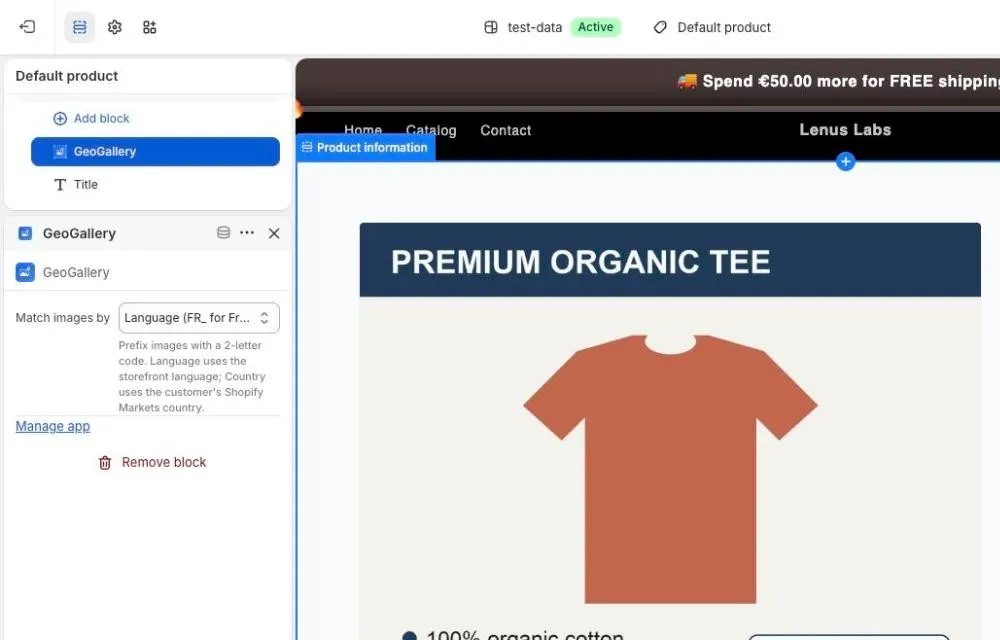
Section titled “3. Add the GeoGallery block to your product page”GeoGallery is a theme app block that sits in your product page’s main section.
- In GeoGallery, open Home.
- Under Add GeoGallery to your product page, click Add block to theme. Your theme editor opens on a product page with the GeoGallery block already added.
- Select the block and choose Match images by: Language, Country, or Country first, then language. Not sure? See Country vs language.
- Click Save.
More detail, including adding the block by hand, is in Theme setup.
4. Add a localized image
Section titled “4. Add a localized image”- In Shopify, open a product that has an image you want to localize, for example
shirt.jpg. - Name the localized version with a two-letter code and the same rest of the filename:
FR_shirt.jpgfor French (Language mode) orUS_shirt.jpgfor the United States (Country mode). - Upload it to that product’s media.
Or let GeoGallery make it: translate the image with AI.
5. Check it worked
Section titled “5. Check it worked”- Open GeoGallery Home. The setup checklist shows which codes it found (for example
FR_) and on how many products. - Open the product on your storefront as that market:
- Language:
/fr/products/your-product - Country:
/products/your-product?country=US
- Language:
You should see the localized image in place of the default one. If not, see Testing your storefront and Troubleshooting.
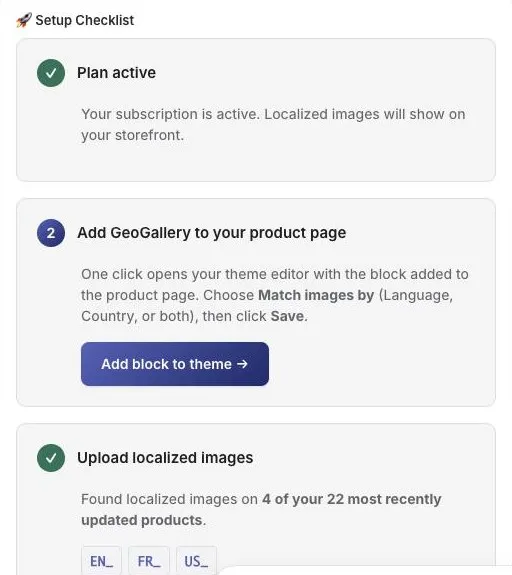
There’s also a setup video on the GeoGallery Home page.
Want us to set it up for you?
Section titled “Want us to set it up for you?”We can set GeoGallery up for you at no cost. Email support@lenuslabs.com and we’ll send a Shopify collaborator request, limited to themes, products and apps, which you approve in your admin and can remove at any time. We add the block to your theme and check your product pages.